

Intro
Resurs Price Info is a compliant way to let your customers understand our terms, explore payment plans, monthly costs, interest rates, total credit, and other costs directly in your storefront. It will display a call-to-action to apply for the given payment method if an application form is configured. Embed it as an iframe or link to our hosted page. Live demoUse Cases
Embedded in your page
Display Resurs price info directly in your page using an<iframe>.
The recommended width for your iframe is 450 pixels for optimal layout. The
minimum supported width is 320 pixels.
Example:
Checkout Mode
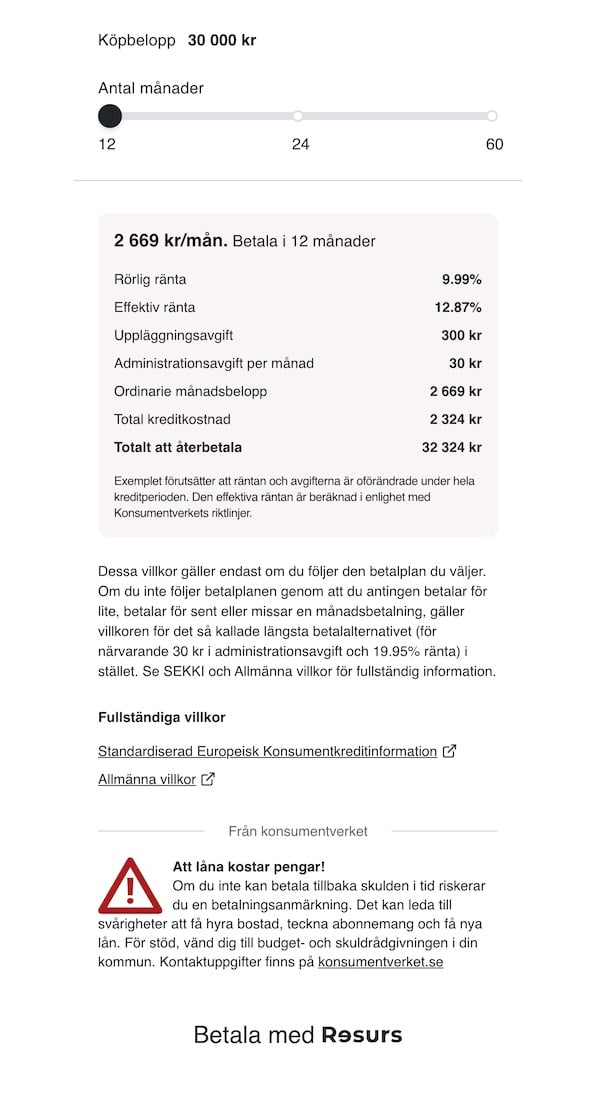
You can embed a checkout-tailored variant of the price info page. In checkout mode, the purchase amount is fixed (no amount slider is shown), making it suitable for order confirmation, or embedding in your checkout, where the amount is already determined. Example:Product Detail Page (PDP) Mode
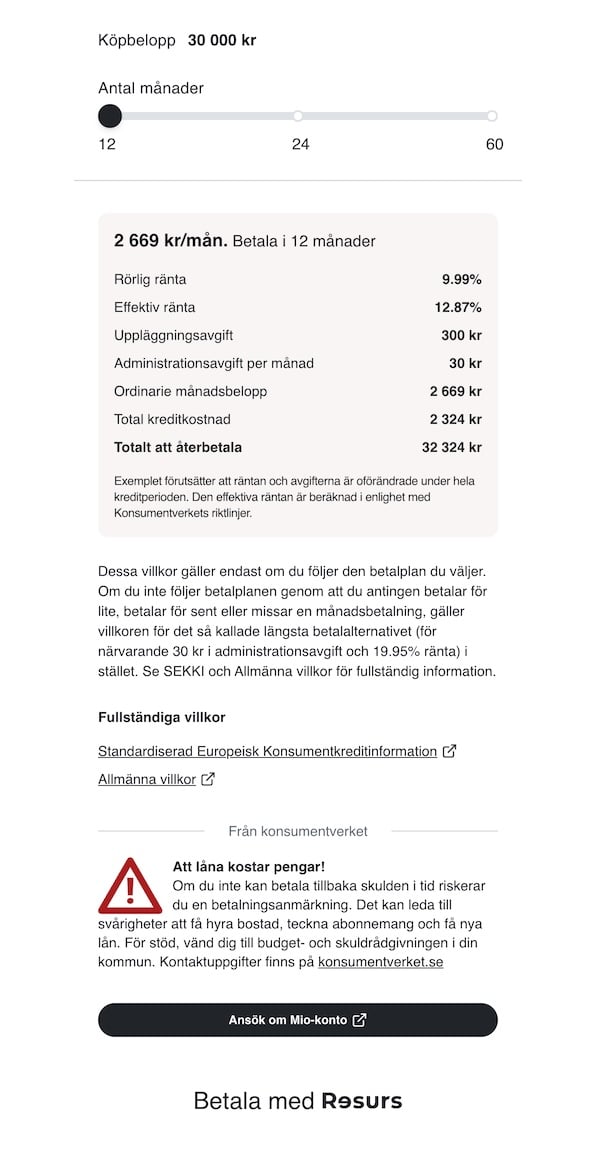
You can embed a pdp-tailored variant of the price info page. In PDP mode, the purchase amount is fixed (no amount slider is shown), making it suitable for embedding in your product pages, where the amount matches your product price. Example:Link to us
You can add a link to our hosted price info page so customers can view pricing in a page hosted by us. Example:Constructing the URL
A price info URL consists of a base URL, mode (optional), store ID, channel type, payment method ID, amount, customer type, repayment months (optional), and interest rate (optional).URL Parameters
Breaking down this example:https://pricing.resurs.com/[mode]/stores/[store-id]/channels/[channleType]/payment-methods/[paymentMethodId]?amount=[amount]&customerType=[customerType]&repaymentMonths=[repaymentMonths]&interestRate=[interestRate]
Positional Parameters
Query Parameters
Channel Types
Customer Types
What the Page Displays
Default Mode
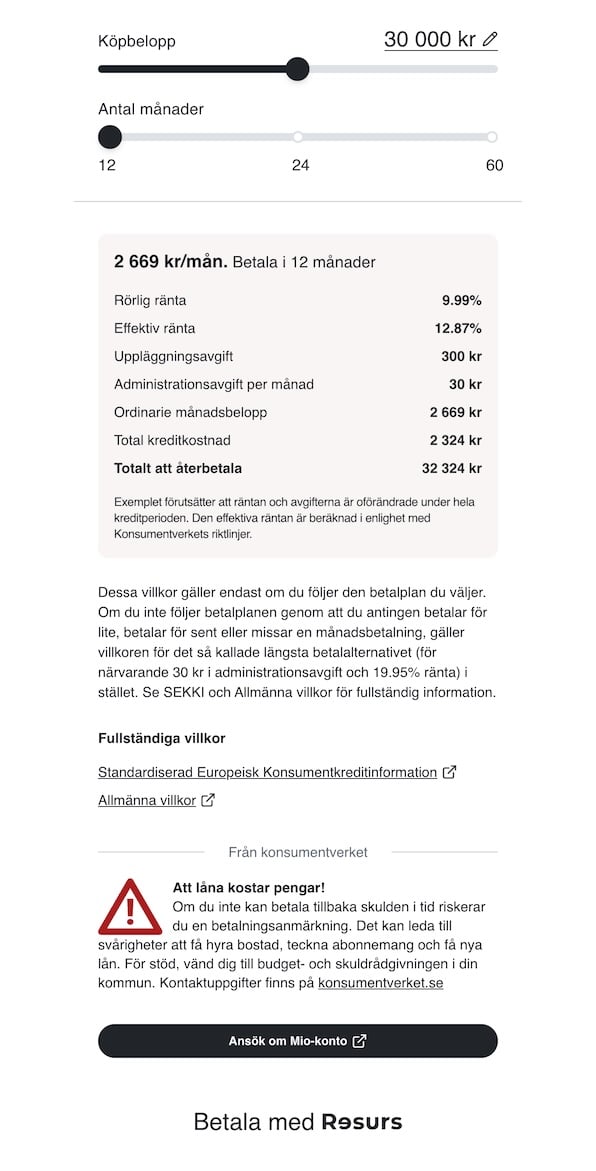
- Amount slider — adjustable purchase amount within the payment method’s min/max limits
- Amount input — enter an exact purchase amount directly instead of using the slider
- Duration selector — choose repayment period from available options (number of months for credit products, number of days for invoice)
- Price breakdown — depending on the payment method, shows:
- Monthly repayment amount
- Interest rate and effective interest rate
- Monthly administration fee
- Arrangement fee
- Total credit cost and total loan cost
- For invoices: account fee and payment timeframe
- Campaign badges — promotional payment plans are highlighted
- Legal links — links to SECCI (standardised European consumer credit information) and general terms
- Credit warning — for Swedish stores, a mandatory consumer credit warning is displayed when appropriate
- Apply link — if available, a call-to-action button to apply for the payment method
Checkout Mode
PDP Mode
Amount Limits
Each payment method defines minimum and maximum allowed amounts. If theamount
parameter is outside the allowed range, the page displays a warning and offers a
button to adjust to the nearest valid amount.
Localization
The page automatically detects the store’s country and sets the language accordingly:
English is available as a fallback language.
Fetching Your Store ID and Payment Method IDs
To obtain yourstoreId and see which payment methods are available for your
store refer to the Resurs Bank merchant API documentation.